Running Cinema scripts
The cinema command line tool makes a host of pycinema capability available through the command line. The cinema help message shows the list of subcommands available, and a short description of their capabilities:
$ cinema --help

usage: cinema [-h] {compose,meta,browse,discover,explore,imagegrid,view,theater} ...

Cinema command line tool

positional arguments:
  {compose,meta,browse,discover,explore,imagegrid,view,theater}
                        Sub-commands
    compose             convert Cinema float (hdf5) images to .png
    meta                dump descriptive metadata about a cinema database
    browse              browse a cinema database
    discover            discover a cinema database
    explore             explore a cinema database
    imagegrid           imagegrid a cinema database
    view                view a cinema database
    theater             run a cinema script in theater

 options:
   -h, --help            show this help message and exit
The cinema command line tool runs pycinema-created python scripts using the pycinema module. These scripts can be run from the command line by providing the path to the script as a single command line argument.
This example script loads a Cinema database, queries for a single image, then applies an image border to that image. Both the original and the image with the border are displayed side-by-side.
$ cinema examples/theater/ImageBorder.py

This example script loads a Cinema database, queries for a single image, then applies an image edge detection algorithm to that image. The result of that edge detection is then composited onto the original image using a mask composite operation.
$ cinema examples/theater/ImageEdgeDetection.py

Scripts with No GUI
Some pycinema scripts do not not include GUI elements, and can be run with python, assuming that the pycinema module has been installed. These scripts execute pycinema scripts, producing intermediate data products, files, etc. as defined by the filters.
For example, the following script reads in a Cinema database, then writes out the data.csv file as a new csv file, without requiring the GUI:
$ python examples/python/TableWriteExample.py
Compositing HDF5 images
Cinema defines an image format that can be recolored and comoposited interactively, providing users with a way of changing and exploring the images after they have been created. For example, the following screen capture shows the results of compositing the elements in the GroundWater.cdb database (available here) using a different colormap for one of the elements (rainbow on the left, and greens on the right).
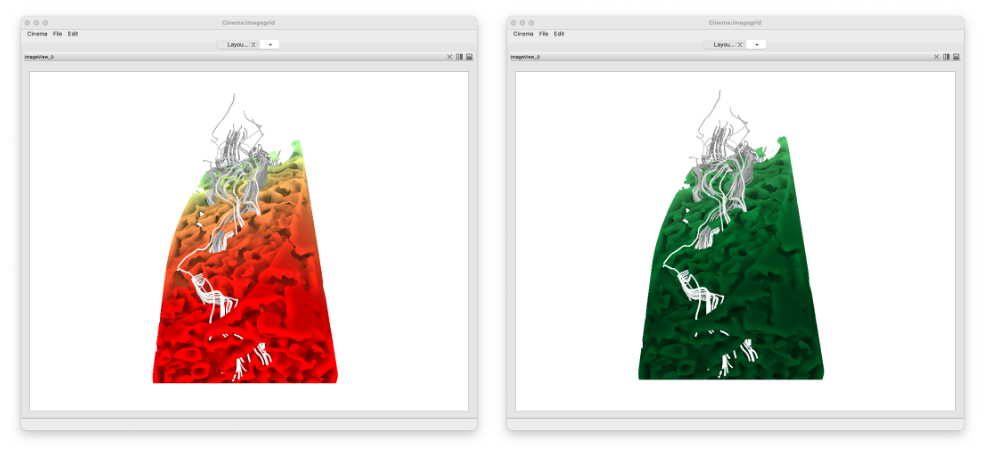
Using the GroundWater.cdb database and basic settings, we can composite images consisting of two elements - a pourous rock, and streamlines showing the flow of water within the rock. Each element is colored by a different colormap (the streamlines are gray, and the rock is rainbow):
config:
  depthchannel: Depth
  output: GroundWater_composited_noshadows.cdb

database:
  path: pycinema-data/GroundWater.cdb
  filecolumn: FILE
  elementlabel: object_id

elements:
  - name: '0'
    channel: Elevation
    channelrange: [-1.0, 1.0]
    colormap: rainbow
    nancolor: [0, 0, 0, 0]
  - name: '1'
    channel: Elevation
    channelrange: [-1.0, 1.0]
    colormap: gray
    nancolor: [0, 0, 0, 0]

These images can be improved by activating ambient occlusion shadows and providing values in the configuration file. The configuration file below produced the following results:
config:
  depthchannel: Depth
  output: GroundWater_composited_noshadows.cdb

database:
  path: pycinema-data/GroundWater.cdb
  filecolumn: FILE
  elementlabel: object_id

elements:
  - name: '0'
    channel: Elevation
    channelrange: [-1.0, 1.0]
    colormap: rainbow
    nancolor: [0, 0, 0, 0]
  - name: '1'
    channel: Elevation
    channelrange: [-1.0, 1.0]
    colormap: gray
    nancolor: [0, 0, 0, 0]

shadow:
  state: True
  type: SSAO
  radius: 0.03
  samples: 32
  diff: 0.5